
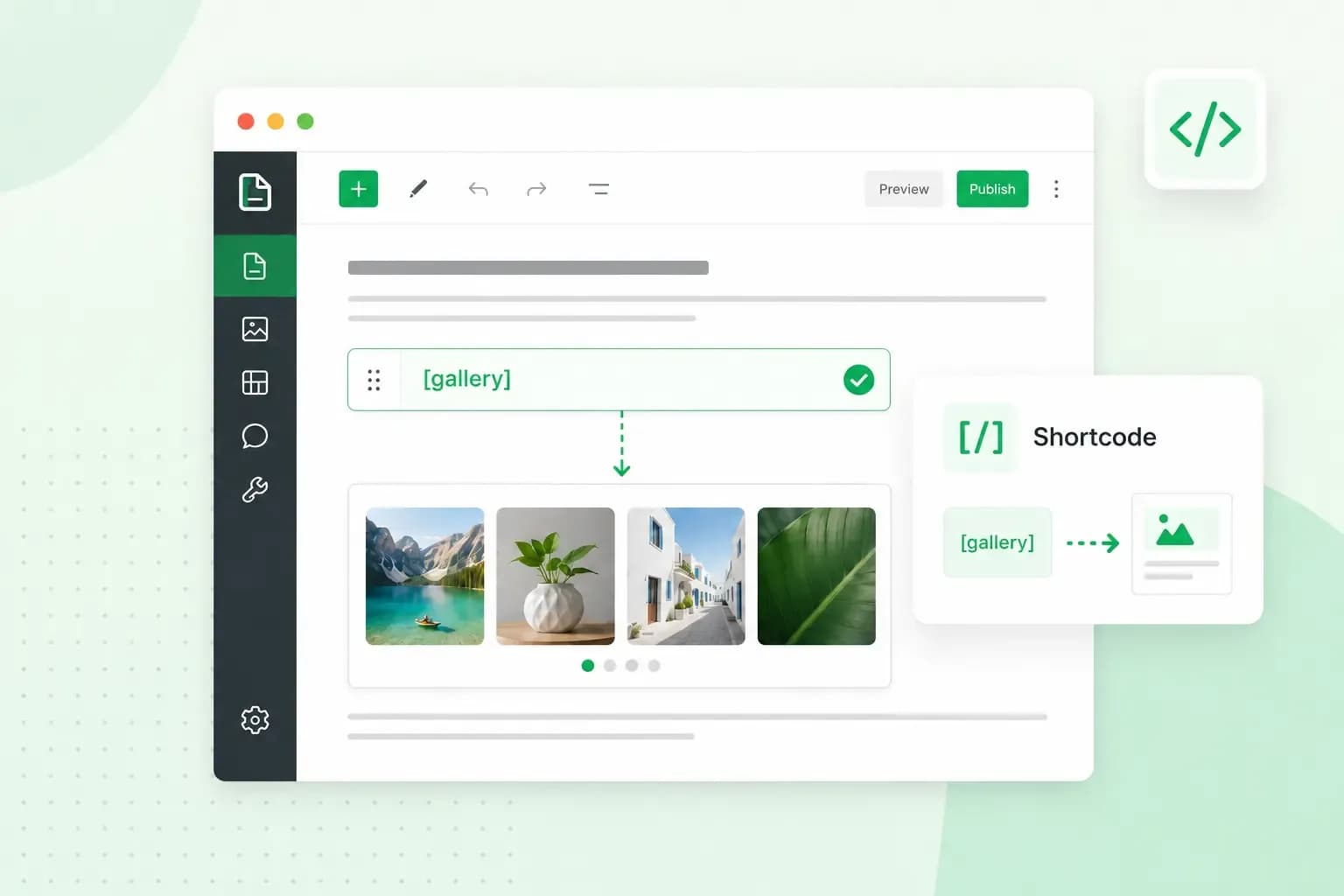
A shortcode is a short tag in square brackets, such as [gallery], that you type into a WordPress page or post. When someone opens the page, WordPress swaps the tag for the feature behind it, in this case an image gallery. You get a gallery, a video player or a contact form on your page without writing any code yourself.
Many WordPress plugins come with shortcodes of their own, so you can put a plugin's feature exactly where you want it on a page. A plugin gives your site a new feature, such as a booking form or a shop for selling products. On a site with our Hosting for WordPress, you choose the plugins whose shortcodes you want to use and install them yourself.
How shortcodes work
As a security precaution, WordPress doesn't run PHP code typed into a post. It added shortcodes in version 2.5 so your content can still do jobs that need code, such as building a gallery from the images attached to a post.
You'll meet two forms. The self-closing kind stands on its own, like [gallery]. The enclosing kind wraps content between an opening and a closing tag, much like HTML. The closing tag starts with a slash: [tag]your content[/tag].
Shortcodes can also accept attributes, which change how the shortcode behaves on that one page. You write them inside the opening tag, as in [tab title="About us"], and the plugin's documentation tells you which attributes it understands.
WordPress shortcode examples
WordPress includes these shortcodes by default:
[caption]adds a caption to the content it wraps, such as an image.[gallery]shows an image gallery.[audio]and[video]play an audio or video file right on the page.[playlist]shows a collection of audio or video files.[embed]wraps items you embed, meaning content that shows inside your page.
Plugins add their own. WooCommerce, the shop plugin for WordPress, has a [products] shortcode, and its limit attribute sets how many products the list shows.
A tabs plugin, for example, could give you an enclosing shortcode like this:
[tabs]
[tab title="About us"]Who you are and what you do.[/tab]
[tab title="Contact"]How customers can reach you.[/tab]
[/tabs]
[tabs] opens the set of tabs and [/tabs] closes it. Each [tab] carries its title as an attribute and wraps the text that tab shows. Tag and attribute names vary from plugin to plugin, so copy them from the plugin's documentation.
Where to add a shortcode in WordPress
In the classic editor, you paste the shortcode straight into the text of the page or post, where you want the feature to show. In the block editor, you add it with the Shortcode block.
- Copy the shortcode your plugin gives you.
- Open the page or post, click the Add Block button and pick the Shortcode block from the Widgets section, or type
/shortcodeand press Enter. - Type or paste the shortcode into the box the block gives you.
- Preview the page to check that the feature shows instead of the brackets.
Shortcodes also work in widgets, which add content to the areas around your pages, such as a sidebar or footer. When you edit those areas with blocks, add a Shortcode block there, just as you would on a page. On the classic widgets screen, use the Text widget instead. Since WordPress 4.9, the Text widget runs shortcodes itself, so you don't need to change your theme to make them work there.
Developers who want a shortcode inside a theme template can call the do_shortcode() function there. Make that change in a child theme rather than in the theme itself, so you can still update the theme without losing your change.
Why a shortcode shows up as plain text
If your page shows the brackets instead of the feature, WordPress doesn't recognise the shortcode and leaves it in your content as plain text. One reason can be that the plugin behind it is switched off or removed.
First, make sure you've installed and activated the plugin. A misspelt name isn't replaced either, so compare the shortcode with the plugin's documentation. If the brackets still show after that, look for known issues on the plugin author's website, or ask on the WordPress.org support forums, naming the plugin and the shortcode you used. If you stop using a plugin for good, search your pages for its shortcodes and take them out.
Shortcodes or blocks: which should you use?
Use a block where your plugin offers one, and the Shortcode block where it doesn't. Unlike other common blocks, the Shortcode block has no settings in the block toolbar or the editor sidebar, so you change everything by typing attributes into the shortcode by hand. WooCommerce, for example, builds the cart and checkout pages with blocks by default in stores started since version 8.3, and you can still switch both back to the classic shortcode version if you need to.
In a Text widget, stick with the shortcode.
Build and run your WordPress site yourself, with an SSL certificate on every plan.
Compare Hosting for WordPress plansFrequently asked questions
Can you create your own shortcode?
Yes, you can add your own shortcodes if you can edit a plugin or theme. A developer registers the new shortcode with the add_shortcode() function and links it to a function that returns what the page should show. WordPress then replaces every use of that shortcode with the result.
Is a shortcode the same as an SMS short code?
No. An SMS short code is a short phone number you send a text to, for example to give money to a charity. In the UK, charities use short codes that begin with 70. A WordPress shortcode is text in square brackets on a web page.
Shortcodes let you place a gallery, a form or a plugin's feature wherever a page needs it. Start your own WordPress site with Hosting for WordPress and put your first shortcode to work.
Recommended reading
 WordPress6 Aug 2026
What is WooCommerce?
Do you want to start your online shop? Get to know WooCommerce in this guide: an e-commerce solution to build your shop. WordPress5 Aug 2026
Why is my WordPress site so slow?
Slow WordPress site? We look at the most common reasons and share how to speed up your WordPress website in this practical guide. WordPress30 Oct 2025
WordPress SEO – Checklist with 9 tips
Increase traffic to your site with WordPress search engine optimisation. Follow our WordPress SEO guide and read about the best SEO plugins.