
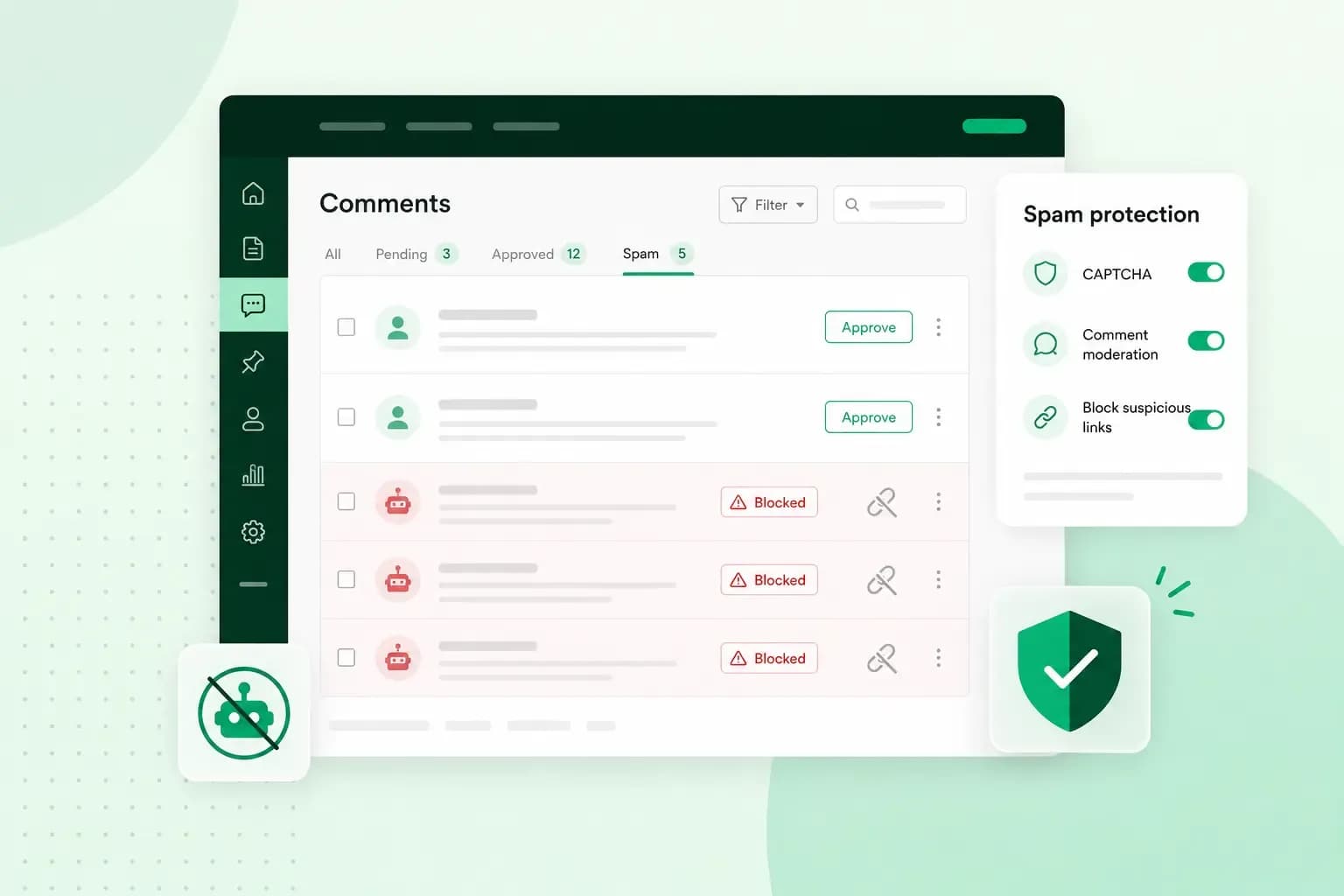
To stop WordPress spam, start with the comment moderation settings WordPress already has and add an anti-spam plugin such as Akismet. Then put reCAPTCHA or a hidden check on your forms, and create a mailbox for the address WordPress sends email from. Together they deal with spam in your comments, forms and sign-ups.
Where WordPress spam gets in
Spam gets into a WordPress site through its forms:
- Bots post spam comments straight to the comment form under your posts.
- Bots send spam through your contact forms, so it lands straight in your inbox.
- Bots create fake accounts on websites that let anyone register.
Spam can also go out from your site. By default, WordPress sends email from your own domain, so any spam from WordPress on your website carries your name.
Use WordPress's own spam settings
WordPress keeps its comment spam settings on one screen. In your dashboard, go to Settings > Discussion and check these settings:
- Hold a comment with links: a comment with the number of links you set, or more, waits for your approval. WordPress notes that spammers now commonly use only one or two links, so a low number works best, such as 1 if your genuine commenters rarely share links.
- Comment moderation list: if a word on this list appears in a comment's text, name, URL, email address, IP address or browser user agent, the comment waits in the moderation queue. Words also match inside other words, so "press" catches "WordPress".
- Disallowed comment keys: this list works the same way, but a matching comment never reaches you. It's best kept for words you're sure about, because a genuine comment can be deleted without you ever knowing.
- Comment author must fill out name and email: spammers have to do a little more work, but WordPress doesn't check the name or the address in any way.
- Users must be registered and logged in to comment: only people with an account on your website can comment. It suits a members' website where you control who can register.
- Automatically close comments on older articles: after the number of days you choose, the comment form disappears from older posts. Comments you've already approved stay visible.
- An administrator must always approve the comment: every comment waits for your approval before it appears. You still have to clear the spam out of the queue yourself.
- Comment author must have a previously approved comment: a comment only appears straight away if its email address matches one of an earlier approved comment, otherwise it waits in the moderation queue. First-time commenters, genuine or not, always wait for you.
- Allow people to post comments on new articles: with this unticked, new posts don't accept comments unless you allow them on a single post. It only applies to posts you publish from now on.
- Email me whenever: this decides whether you hear about every new comment or only about comments held for moderation. With every comment switched on, a wave of spam can fill your inbox quickly.
Click Save Changes at the bottom of the screen to keep your settings.
Close comments on posts you've already published
To switch comments off on posts that are already live, use bulk edit:
- In your WordPress dashboard, go to Posts.
- Tick the boxes next to the posts you want to close.
- Open the Bulk actions menu, pick Edit and click Apply.
- In the bulk edit options, set Comments to Do not allow.
- Click Update to save the change.
Turn off user registration you don't need
An open sign-up form attracts fake accounts from bots. If visitors don't need an account on your website, go to Settings > General, make sure Anyone can register is unticked and click Save Changes. Leave it on only if people need an account on your website, for example because they must log in to comment.
Choose an anti-spam plugin
The settings above follow rules you write. An anti-spam plugin checks each comment or form for you and filters out what looks like spam. You install it from the Plugins screen in your dashboard and then activate it, like any other WordPress plugin.
Anti-spam plugins for WordPress compared
| Covers | Spam check | Cost | |
|---|---|---|---|
| Akismet | Comments and contact form submissions | Against Akismet's global database of spam | Free key for personal blogs, paid plans for business and commercial sites |
| Antispam Bee | WordPress's own comments and trackbacks (notices from other blogs that link to your posts), not form plugins or sign-ups | On your own site, without sending personal data to outside services | Free |
| CleanTalk Anti-Spam | Comments, contact forms, registrations and WooCommerce | Through CleanTalk's cloud service and its shared spam data | Free trial, then a yearly subscription |
| WPBruiser | Login, registration, lost password and comment forms | With a hidden token that bots don't have, on your own server | Free, with a paid Pro version for other form plugins |
| Titan Anti-spam & Security | Comments, plus protection for your login page | Against a global spam database and filtering rules | Free, with a Pro version |
If spam mostly arrives in your comments, Akismet and Antispam Bee both filter it out. Akismet asks for an API key from Akismet.com once you activate it, and a business site needs a paid plan. On a business site where spam only arrives in your comments, Antispam Bee does the job for free. If your contact form gets spam too, Akismet checks those submissions as well. For fake sign-ups, pick CleanTalk, which covers comments, contact forms and registrations in one plugin, or WPBruiser, whose free version protects your registration form.
Add a CAPTCHA or a hidden check to your forms
A CAPTCHA is a test on a form that tells people and bots apart, so automated sign-ups and form spam don't get through. Google's reCAPTCHA v3 works without a puzzle. It scores each visit on how it interacts with your site, and your site decides what happens to a visit with a low score. The Advanced Google reCAPTCHA plugin adds it to the same four WordPress forms that WPBruiser covers in the table above.
To set it up, install and activate the plugin first. To get the keys the plugin needs, register your site in Google's reCAPTCHA Admin console and choose Score based (v3) as the type. You then see a site key and a secret key. Enter them in the plugin's own Advanced Google reCAPTCHA menu, where you select reCAPTCHA v3, click Verify Captcha and save your changes.
Because Google scores your visitors' behaviour, check that your privacy notice and cookie consent cover reCAPTCHA. Our guide explains what GDPR means for your website. WPBruiser takes another route and sends no visitor data anywhere. It gives each protected form a hidden token that a real visitor's browser fetches in the background. A bot that posts straight to the form doesn't have the token, so it's turned away.
On top of your anti-spam plugin, one of the two is usually enough. We'd choose WPBruiser, which needs no keys from Google and keeps the check on your own server. If you already use it as your anti-spam plugin, you don't need reCAPTCHA as well. For your contact form, the anti-spam plugin does this job, so pick one that checks form submissions.
Check whether your site is sending spam emails
WordPress sends some emails on its own. When nothing else sets a sender, it sends them from wordpress@ followed by your domain name. WordPress's developer documentation notes that some hosts block outgoing email from this address if the mailbox doesn't exist. Create that mailbox on your domain.
If you don't have email on your domain yet, you first need a business email plan or one of our hosting plans, which include email. With another email provider, create the mailbox and the forward there. With email from us, you catch what lands on the wordpress@ address when you create the mailbox in our control panel and send its email to the inbox you read:
- In our control panel, create the email account your site sends from:
wordpress@followed by your domain. - Set up an automatic forward from that account to the address you read every day.
- Open the inbox you forward to and confirm the forward in the verification email we send there.
- Check that the forward shows as verified in your email account settings.
Then keep an eye on what arrives. Notices in this mailbox that emails couldn't be delivered, when you never sent those emails, are worth looking into. A form on your website that sends email, such as a contact form, is one place to look, and a hacked site can send spam too. Switch that form off until you've found the cause, and add the form protection above before you switch it back on.
Professional email on your own domain, with spam and virus protection in every inbox.
Choose an email planClear out the spam that's already there
For spam that already got through, open Comments in your dashboard, select the comments and choose Mark as Spam or Move to Trash from the bulk actions, then click Apply. For a large backlog, you can delete spam comments in the database. The easiest way to do that also removes your genuine comments, so back up your database first, for example with a WordPress backup plugin or your host's database tool. You can then restore it if something goes wrong.
If you find spam pages or links you didn't add yourself, treat it as a security problem. Our WordPress security guide lists the measures that protect your website.
Keep spam out from the start
Set these measures up once, then check your moderation queue now and then so spam doesn't build up again. When you start your next website, Hosting for WordPress gives you what you need to build and run it yourself, so you can put these settings in place before the first visitor arrives.
Recommended reading
 WordPressNov 6, 2026
How to find your WordPress login page (wp-admin)
Your WordPress login page is your site's address with /wp-admin at the end. Here's how to log in, why wp-admin may redirect and how to reset a lost password. WordPressAug 6, 2026
What is WooCommerce?
Do you want to start your online shop? Get to know WooCommerce in this guide: an e-commerce solution to build your shop. WordPressAug 5, 2026
Why is my WordPress site so slow?
Slow WordPress site? We look at the most common reasons and share how to speed up your WordPress website in this practical guide.