
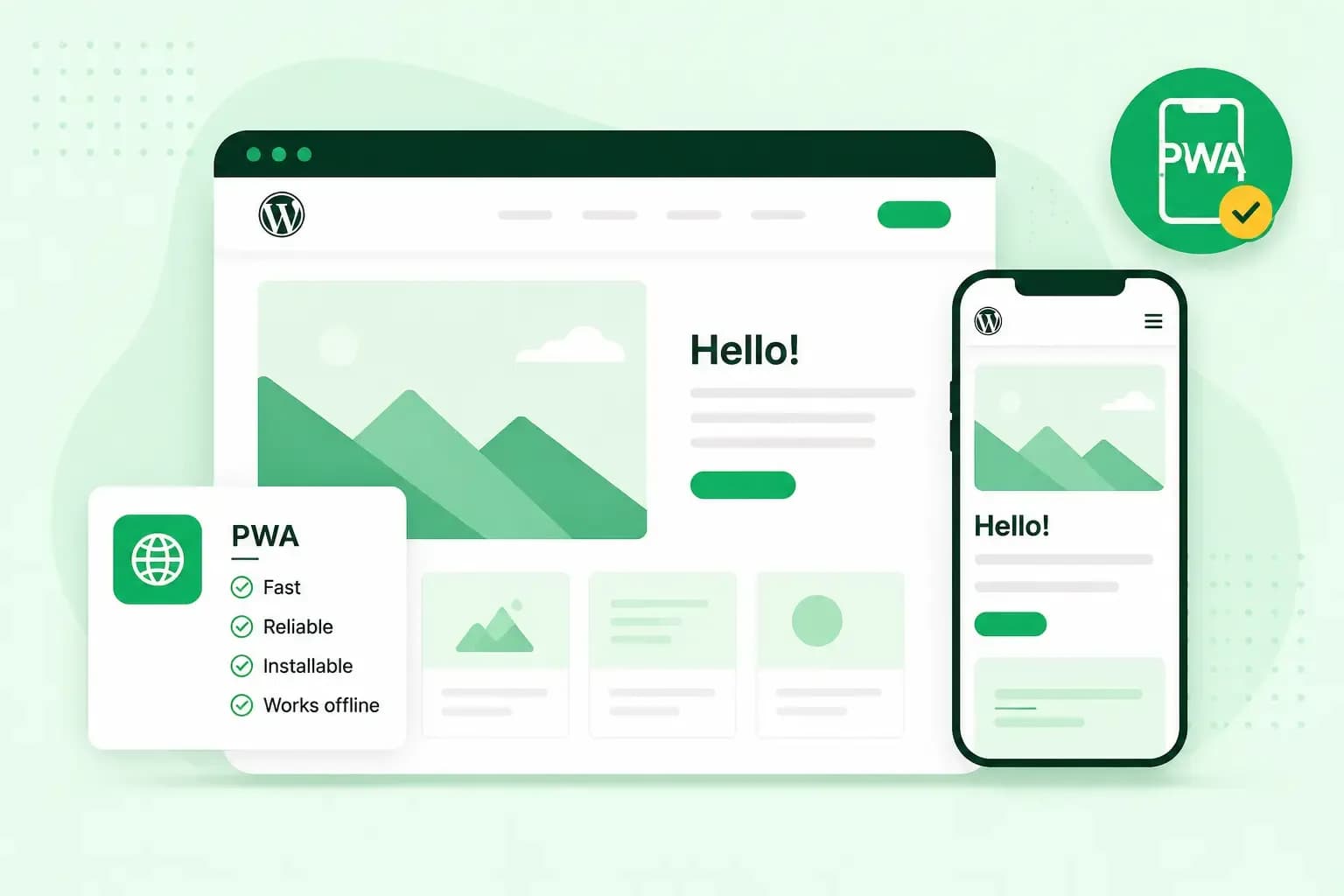
You can turn your WordPress site into a progressive web app (PWA) with a plugin. You install the plugin and set your app's icon and offline page. Visitors can then add your site to their home screen and open it like an app. Your site needs to run on HTTPS first.
What is a progressive web app?
A progressive web app is a website built to behave like an app. It is still your website, but once a visitor installs it, it usually opens in its own window without the browser's address bar. It can also keep working when the connection drops, and it can send notifications.
Every PWA needs a web app manifest, a small file that tells the browser your app's name and icon. To work offline, the app also needs a service worker. The service worker is a script the browser runs in the background. It can save pages on the visitor's device, so your app can still open without a connection.
Create a progressive web app with WordPress
A WordPress plugin does the technical work for you. It generates the manifest, adds it to your site and installs a service worker that saves pages for offline use.
Browsers only install a PWA from a secure HTTPS address. If your site's address still starts with http://, it needs an SSL certificate before you start.
Run one PWA plugin at a time. Only one service worker can be active on a site, so a second PWA plugin gets in the way of the first.
This guide uses Super Progressive Web Apps, a free plugin from the WordPress plugin directory. Some extra features come with its pro version. To install and activate it from your WordPress dashboard:
- Make sure your website loads over HTTPS rather than HTTP, so its address starts with
https://. - In your WordPress dashboard, go to Plugins > Add New.
- Search for Super Progressive Web Apps.
- Click Install Now, then Activate.
Once the plugin is active, your app is ready to test with the default settings, but it's worth giving it your own icon first.
Set your app's icon, colour and offline page
The plugin's settings decide how your app looks when a visitor opens it. In your dashboard menu, the plugin shows up under its short name, SuperPWA. For the offline page, it helps to create a short page first that tells visitors they're offline and can try again once they're connected. To make the app your own after activating the plugin, go through these settings:
- Go to SuperPWA in your WordPress dashboard.
- Set a background colour for the splash screen, the screen visitors see while the app opens.
- Set your app icon. It has to be a PNG image of exactly 192 x 192 pixels.
- Set your offline page, which visitors see when they're offline and the page they want isn't saved on their device.
- Click Save Settings.
The same settings let you change the app's name, its short name and the page it opens on.
Test the app on your phone
Start your test on an Android phone, where Chrome shows a prompt to add the app to your home screen.
- Open your website in Chrome on an Android phone and wait until it has fully loaded.
- Tap the prompt to add the app to your home screen, and wait for the install to finish.
- Open the app from your home screen and browse a few pages.
- Close the app.
- Disconnect from the internet and open the app again. The pages you visited should still show.
If the prompt doesn't appear, check that your site loads over HTTPS and that you're using a supported phone and browser. Your app icon also has to be a PNG image of exactly 192 x 192 pixels, and your splash screen icon a PNG of 512 x 512 pixels. If the prompt still doesn't appear, clear the browser cache and try again.
A PWA works on iPhone too, but visitors add it themselves in Safari. They open the Share menu, tap Add to Home Screen, turn on Open as Web App and then tap Add.
Keep the plugin updated
Plugin developers release updates to add features and keep their plugins secure, so it's worth switching on automatic updates for your PWA plugin. Check your site after each update, so you notice quickly if something looks wrong.
With Managed hosting for WordPress, we update WordPress, your themes and your plugins for you. After each update, we check your website visually. If something is off, we roll it back and let you know.
Get Managed hosting for WordPressAlternatives to Super Progressive Web Apps
If Super Progressive Web Apps doesn't suit your site, these plugins do a similar job:
- PWA for WP: keeps your site viewable offline, lets visitors add it to their home screen, and was built with AMP pages in mind.
- PWA: a plugin of that name, made as a set of building blocks that themes and other plugins can build on. That makes it a better fit for developers than for site owners.
Create a PWA without a plugin
Without a plugin, you write the web app manifest yourself and add your own service worker for offline use. That takes some coding, so it suits developers. You'll find the full process in a comprehensive guide on web.dev.
Advantages of a progressive web app
A PWA gives your visitors much of what they like about apps, without you building an app for each platform.
- Once installed, your site sits next to the visitor's other apps and opens in its own window. On a computer, it appears in the Start menu, the Launchpad or the app launcher.
- Repeat visits are faster. The service worker keeps the pages a visitor opens in the cache on their device, so those pages load almost instantly next time.
- Pages a visitor has already opened stay readable without a connection, and other pages show your offline page.
- You can send visitors notifications about news or offers through a push service such as OneSignal, which Super Progressive Web Apps works with. On iPhone and iPad, this works from iOS and iPadOS 16.4, and only once the visitor has added the app to the home screen and allowed its notifications.
- A PWA can run on different operating systems from one codebase. When you update your website, the app updates too, with nothing for visitors to install.
- You can list a PWA in stores such as Google Play and the Microsoft Store, so people find it where they look for other apps.
Case studies on web.dev show the effect on large online businesses. Alibaba reported 76% more total conversions across browsers after moving its mobile site to a PWA. Software company Corel found that its Gravit Designer PWA accounts for 31% more repeat users than all its other platforms.
Disadvantages of a progressive web app
A PWA is still a website, and that sets some limits, especially next to an app built for iOS or Android.
- Because iPhone visitors get no install prompt, they add the app themselves. A short note on your site that names the steps in the Share menu helps them do it.
- PWAs often use web features that not every browser supports, so your app should still work without them where they're missing.
- To appear in an app store, the app needs a package for that store, and each store has its own process for publishing it.
When a progressive web app makes sense
A PWA makes sense when visitors come back to your site again and again, for example to read new posts or book another appointment. A native app is built separately for iOS and Android, usually with each platform's own tools. It fits better when your app depends on a device feature that browsers don't offer to websites.
Our advice: if your site already runs on WordPress, start with a PWA. It takes one plugin, and you keep one website for every device.
If you don't have a WordPress site yet, you can start one with our Hosting for WordPress and add a PWA plugin once it's live.
Recommended reading
 WordPress6 Aug 2026
What is WooCommerce?
Do you want to start your online shop? Get to know WooCommerce in this guide: an e-commerce solution to build your shop. WordPress5 Aug 2026
Why is my WordPress site so slow? 7 reasons and ways to fix them
Slow WordPress site? We look at the most common reasons and share how to speed up your WordPress website in this practical guide. WordPress30 Oct 2025
WordPress SEO – Checklist with 9 tips
Increase traffic to your site with WordPress search engine optimisation. Follow our WordPress SEO guide and read about the best SEO plugins.