
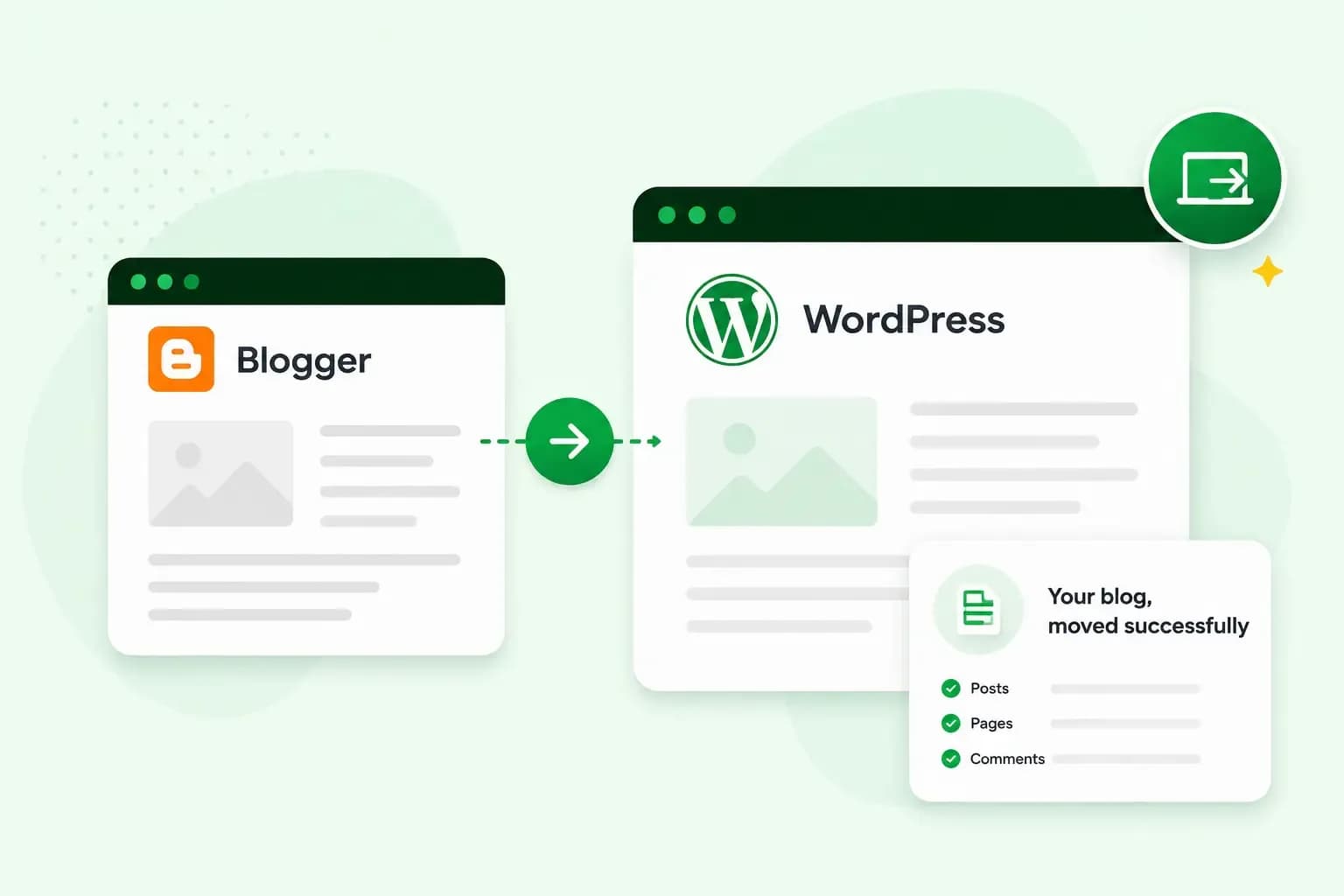
To move from Blogger to WordPress, you export a backup file of your blog from Blogger and import it into WordPress with an importer plugin. Then you set your permalinks and redirect your old posts, so anyone who follows an old link lands on the post's new address. Your posts and comments come across with the import. Pages, widgets and your Blogger theme don't, so you rebuild those afterwards.
Why move from Blogger to WordPress?
Moving gives you control. You pick the hosting, the design and the extra features your blog runs on, and you can change any of them later.
In return, you take on the upkeep that Blogger did for you. On WordPress, your plugins need regular updates for security and performance, done by you or by your host.
What you need before you start
You need hosting, a domain and a WordPress website to import into, all in place before you export anything.
- Hosting for your new blog, such as our Hosting for WordPress, and a domain for its address. Hosting and a domain cost money, so the move comes with a running cost.
- WordPress, installed before you start, because the import runs inside WordPress. With our hosting, you install it from the control panel with our 1-click installation.
Decide who looks after the updates, too. On Hosting for WordPress, you update WordPress, your theme and your plugins yourself. With Managed Hosting for WordPress, we do it for you and roll your site back if an update breaks something.
How to migrate Blogger to WordPress
The move has four parts: you export your blog, import it into WordPress, set your permalinks and redirect your old addresses, in that order. Your Blogger blog stays online throughout, so your readers can still reach it while you work. Blogger and the WordPress plugins change their screens from time to time, so follow each tool's own guide for the exact clicks.
Export your blog from Blogger
Blogger's backup file holds your blog's posts, pages and comments, and it's the file you import into WordPress. You create it in Blogger under Settings, in the Manage blog section. Blogger now delivers the backup through Google Takeout, so it can take a while before you can download it. Google's guide to backing up your blog shows the current steps.
Import your posts into WordPress
WordPress brings in content from other platforms with importer plugins, which you find in your dashboard under Tools, then Import. WordPress's own Blogger importer may not read the newer backup file Blogger gives you, so check the plugin's page before you start, and use another Blogger import plugin if yours doesn't support the file. The WordPress guide to importing content explains how importers work. Switch off your other plugins and any caching while the import runs, and switch them back on once it's done.
Set your permalinks
A permalink is the permanent address of a post. You choose how WordPress builds these addresses under Settings, then Permalinks. Post name gives short addresses made from each post's title. If your blog runs on your own domain and its post addresses hold the year, the month and an .html ending, a custom structure such as /%year%/%monthnum%/%postname%.html keeps most of your old addresses. The WordPress guide to the Permalinks screen explains each option.
Redirect your old posts
A redirect tells your visitors and Google that a post has moved to a new address, so readers who follow an old link still find it. How you set it up depends on your blog's address:
- On your own domain: point the domain at your new hosting. Note down the DNS records you set up for Blogger first, so you can switch back if you need to. Then replace them with the records your new host gives you, or transfer your domain to us. Google's guide to custom domains on Blogger lists the records Blogger uses. With matching permalinks, most old links then open the same post on WordPress. For any that don't, add a redirect with a redirect plugin or in your
.htaccessfile. - On a blogspot.com address: the old addresses stay with Blogger, so the redirect has to start there. A plugin such as Blogger To WordPress gives you code for your Blogger theme that sends each old post to its new address. Check on the plugin's page that it works with your WordPress version and your import plugin before you rely on it, and keep your Blogger blog published.
A change of DNS records can take up to 72 hours to reach everyone. Once your domain points at your new host, enter it in WordPress under Settings, then General, as both the WordPress address and the site address. Point your feed at WordPress too, so subscribers keep getting your new posts: in Blogger, paste your new blog's feed address as the Post feed redirect URL under Settings.
Check what came across
- Posts and comments. Check that your published, scheduled and draft posts arrived with their comments.
- Images. Open a few posts and check that their images show.
- Labels. Blogger doesn't tell tags and categories apart, so your labels usually arrive as categories. Go through them and turn some into tags if that suits your blog better.
- Pages. Blogger pages often don't come across. Copy pages such as About or Contact into WordPress by hand.
- Widgets and theme. Your sidebar widgets and your Blogger theme stay behind, so you rebuild them in WordPress.
Once everything is in place, you can remove the importer plugin. Keep any redirect plugin, though.
Rebuild your design and widgets
Start with a theme: our pick of the best free WordPress themes for blogs helps you choose one. With a block theme, you rebuild your sidebar and set your fonts and colours in the Site Editor, under Appearance, then Editor. With a classic theme, you add widgets under Appearance, then Widgets, or in the Customise screen. If the dashboard is new to you, learn how to use WordPress first, from themes and plugins to pages and posts.
Help your blog get found and load fast
Once your posts are in place, Rank Math gives you SEO suggestions as you write and connects to Google Search Console. It also has a limited free version. The WP Rocket plugin speeds up your pages with caching, smaller files and images that load only when they're needed. Your theme and the size of your images affect loading times too, so there are more ways to speed up your WordPress site.
Each new plugin is a change to your live blog. With Managed Hosting for WordPress, you get a staging environment, so you can try a plugin on a private copy of your site before you publish it.
See Managed Hosting for WordPressKeep blogging on your new site
With the move done, your time goes back into writing. If you blog for your company, see what a business blog can do for it. If you're short of topics, our list of ideas for blog posts will get you started.
Your part is writing new posts. With Managed Hosting for WordPress, we look after your WordPress updates, so your time goes into the next post.
Recommended reading
 WordPress6 Nov 2026
How to find your WordPress login page (wp-admin)
Your WordPress login page is your site's address with /wp-admin at the end. Here's how to log in, why wp-admin may redirect and how to reset a lost password. WordPress6 Aug 2026
What is WooCommerce?
Do you want to start your online shop? Get to know WooCommerce in this guide: an e-commerce solution to build your shop. WordPress5 Aug 2026
Why is my WordPress site so slow?
Slow WordPress site? We look at the most common reasons and share how to speed up your WordPress website in this practical guide.