
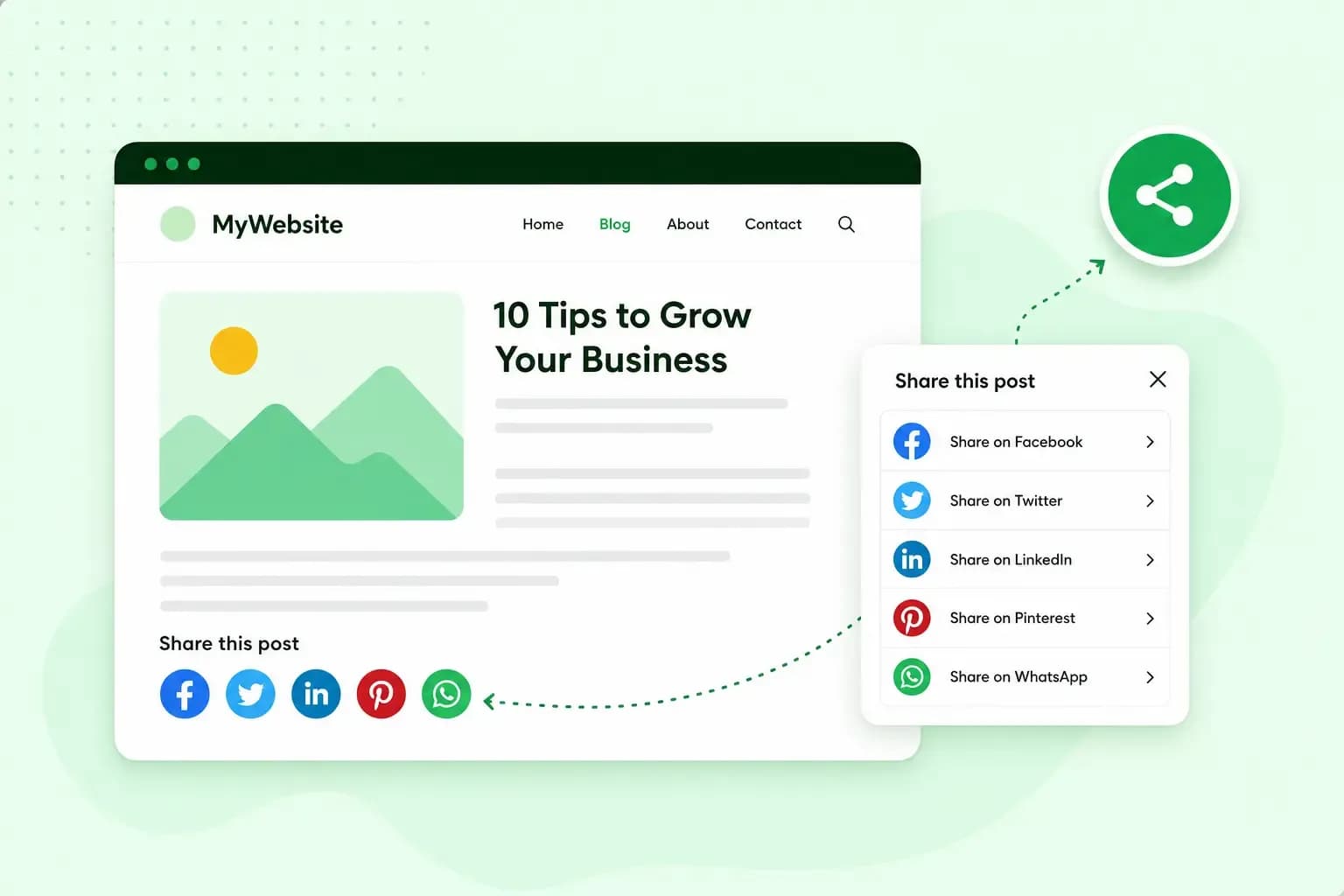
Social media sharing buttons let visitors post a link to your page on their own social accounts with one click. On a WordPress site, you add them with a share button plugin or the Jetpack Sharing Buttons block. A plugin gives WordPress a new feature, in this case the buttons. Then you choose which networks to show and where on the page the buttons appear.
What are social media sharing buttons?
A sharing button opens a ready-made post with your page's address on the network the visitor picks, such as Facebook, LinkedIn or WhatsApp. Share buttons spread your page to the visitor's own followers.
They're easy to mix up with two other kinds of social media buttons. Follow buttons link to your own profiles, so a visitor can follow your business on Instagram, YouTube or another network with one click. Like buttons let a visitor like your page on the network instead of posting it to their followers.
Why add share buttons to your website?
When a visitor shares your page, their friends, colleagues and followers see it on their own accounts. It works like word of mouth with a link attached, and every click on that link can bring a new visitor to your site. The button saves the visitor copying your address into a post themselves.
Share buttons help most on content people want to pass on, such as a useful blog post, a new product or an offer. In an online shop, they can also sit on the order confirmation page, for customers who want to tell friends what they've just bought. Check that your shop plugin or theme can show them there before you plan on it.
Which social share button plugin to choose
Plenty of plugins add social share buttons to a WordPress site. These five are in the WordPress plugin directory, so you install each one from your dashboard like any other WordPress plugin.
- AddToAny Share Buttons adds buttons for Facebook, Pinterest, WhatsApp, LinkedIn, X, Bluesky and other services. It also has follow buttons and a floating share bar.
- Jetpack is a larger plugin from Automattic with backups, security scanning and stats. Its Sharing Buttons block puts the buttons wherever you add it: in a single post, or in a template so they show on every post.
- Hubbub Lite adds share buttons above or below your content, and a floating sidebar that keeps them in view as readers scroll. Registering your free copy adds more platforms to share to and follow buttons.
- Simple Social Media Share Buttons places buttons above or below your posts and in a sidebar, and its premium version adds them on images and in pop-ups. You can hide them on mobile devices.
- Orbit Fox is a toolkit from Themeisle. Its modules include social share buttons, a cookie notice and custom fonts, so it suits you if you'd use several of them.
Before you install a plugin, read its page in the directory. Check when it was last updated and which WordPress version it's been tested with. The directory shows a warning when the developer hasn't tested a plugin with the latest three major releases of WordPress. Plugins can disappear, too: the AddThis share plugin was closed on 27 March 2023 and can no longer be downloaded.
Our advice: if you just want share buttons, choose a plugin made for social media share buttons, such as AddToAny or Hubbub Lite. If you already use Jetpack and a block theme, use its Sharing Buttons block rather than installing a second plugin. Every extra plugin is one more to keep up to date.
How to add social media share buttons in WordPress
Every plugin in the list installs the same way, from your WordPress dashboard:
- Log in to your WordPress dashboard with an administrator account.
- Go to Plugins > Add New.
- Search for the share button plugin you chose, by its name.
- Click Install Now on the plugin you want.
- When the installation is complete, click Activate.
Then open the plugin's settings to choose the networks and where the buttons appear. In AddToAny, you'll find them under Settings > AddToAny. Hubbub Lite adds its own item to the admin menu, where you switch on each place you want buttons.
Using the Jetpack Sharing Buttons block
If your site uses a block theme, Jetpack recommends its block over the older sharing settings. A block theme is a theme you edit entirely with blocks, headers and footers included. With an older theme, you can use one of the share plugins above. For the block, you need Jetpack installed with the steps above and connected to your WordPress.com account first.
- Open the post, page or template where the buttons should go, then find Sharing Buttons among the Jetpack blocks.
- Add the block, then add the sharing services you want to it.
- Adjust the block settings for justification, orientation and whether each button shows an icon, text or both.
- To show the buttons on every post or page, add the block to a template.
Where to place your share buttons
The plugins in the list offer a choice of places for the buttons.
- Before or after your content, as a row of buttons above or below a post. We'd start below the post.
- In a floating bar: buttons that stay at the side of the screen while the reader scrolls.
- On images, as buttons on your photos, which some plugins only offer in a premium version. That's handy if your visitors save pictures to Pinterest.
Show only the networks your visitors actually use. On a phone, a floating bar can cover your text. Check how your pages look on mobile, and switch the bar off there if it gets in the way.
With Hosting for WordPress, you build and run your WordPress site yourself and choose the plugins you want.
Compare Hosting for WordPress plansShare buttons and UK cookie rules
The official buttons of Facebook, Pinterest and other networks can send data about your visitors to those networks. That can happen as soon as the page loads, before anyone clicks. In the UK, that falls under PECR, the Privacy and Electronic Communications Regulations, which cover cookies and similar technologies.
The ICO's guidance on social media plugins says you must get consent for them. The exception is a plugin configured to store or access information only on the devices of people logged in to that network. A plugin that tracks your visitors needs consent in any case, whether or not they use the network.
The plugin's page can tell you which case you're in. Read what it says about visitor data and privacy, and ask for consent where the plugin needs it. You collect that consent with a cookie banner. Termly, a cookie consent add-on we offer, scans your website for cookies and creates a cookie banner and a cookie policy.
Share buttons without a plugin
If you build your website by hand, you can add social media share buttons without a plugin. The Web Share API lets the browser do the sharing for you. It opens the device's own share menu when a visitor clicks your button, with the apps and contacts they already use. It only works on pages served over HTTPS, and not every widely used browser supports it, so keep ordinary share links as a fallback.
An ordinary share link is a normal link to a network's share page, with your page's address added to it. When a visitor clicks it, the network opens a new post with your link in it. Each network's developer pages give the address to use. A Web Share API button, by contrast, takes a few lines of JavaScript, and MDN's Web Share API guide shows an example.
Social links and SocialPilot on our builder sites
On our classic Website Builder, you don't need a plugin for links to your profiles. These are follow buttons, not share buttons: they take visitors to your profiles rather than posting your page. You add a social links element to your page, enter the addresses of your social media pages and publish. Our help centre shows how to add social media links to your site.
To share your own posts on a schedule, you can use the SocialPilot social media tool. It lets you plan and schedule them across your social accounts from one dashboard. Every Aida AI Website Builder plan includes it free of charge. You can also use it with an existing Website Builder site.
Your next step
With share buttons in place, the posts you publish can reach your readers' followers as well as your own. If your WordPress site still needs a home, or you're planning a new one, start it on Hosting for WordPress. Then add your share plugin before your first post goes live.
Recommended reading
 Online MarketingNov 17, 2026
15 ideas for Black Friday marketing
Make the most of Black Friday with 15 marketing ideas to attract customers and boost sales. Discover ways to promote your offers, reach more shoppers and make your campaign stand out. Online MarketingDec 30, 2025
AI SEO: how to use AI for search engine optimisation
A basic guide to AI in SEO – let's look at how artificial intelligence can help you speed up your SEO tasks. Online MarketingDec 30, 2025
AI search optimisation: how to get your website into AI answers
A basic guide to AI in SEO – let's look at how artificial intelligence can help you speed up your SEO tasks.