
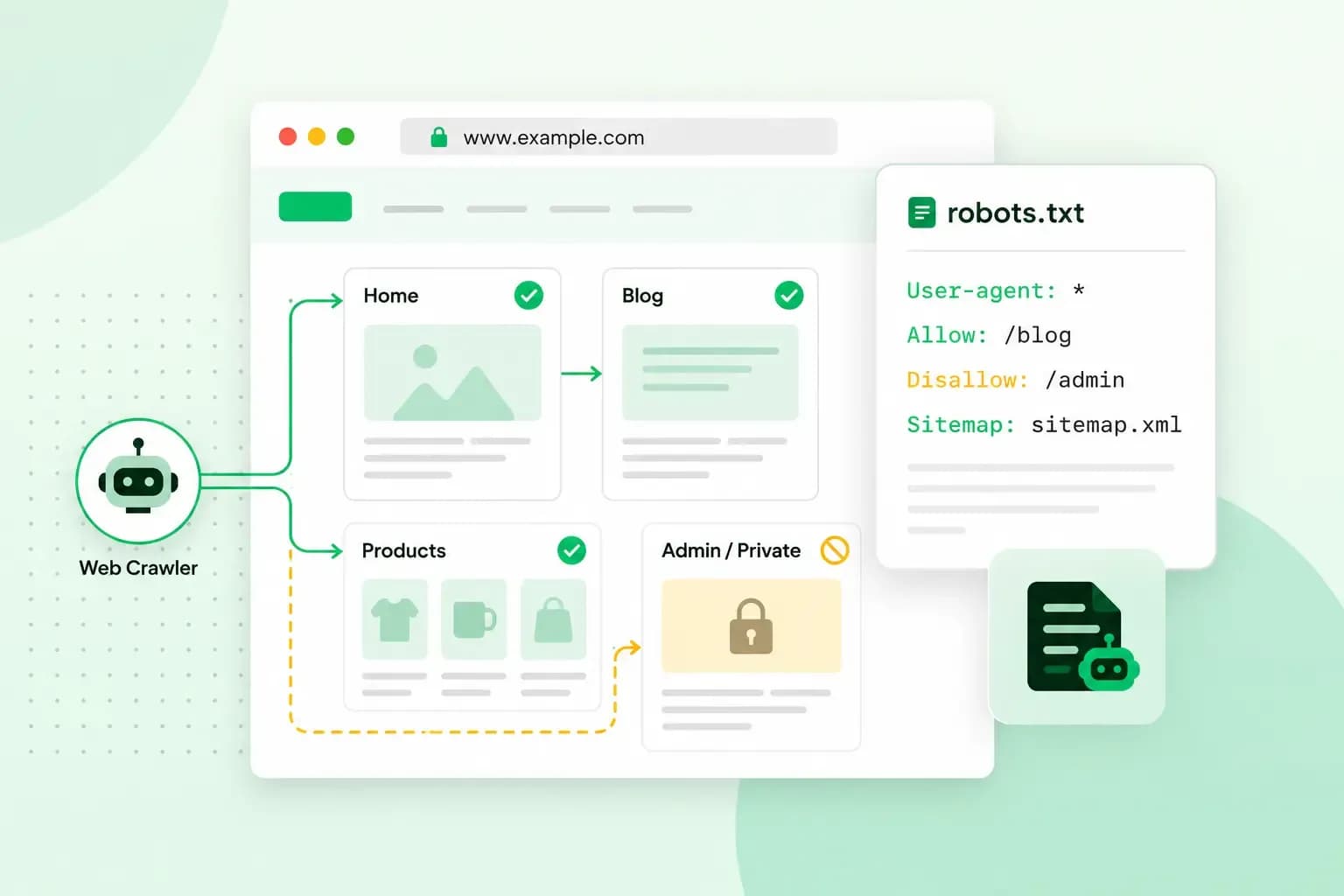
Robots.txt is a plain text file at the root of your website that tells search engines which pages they may crawl and which to stay out of. Google's crawlers read it before they crawl your site. It controls crawling, though, not what appears in search results, so a page you block can still show up in Google.
What a robots.txt file looks like
A robots.txt file is a short list of rules, one per line. This robots.txt example is for an online shop that keeps crawlers out of its basket and its internal search pages.
User-agent: *
Disallow: /basket/
Disallow: /search/
Allow: /search/help.html

Sitemap: https://www.brindlewickpottery.co.uk/sitemap.xml
Google reads only four kinds of line, and the shop's file uses all of them.
- User-agent names the crawler that the rules below it are for, such as
Googlebot. A*group is for every crawler that no other group names, apart from Google's AdsBot crawlers, which ignore it with the advertiser's permission and follow only a group that names them. - Disallow names a folder or page the crawler shouldn't visit. In the example, crawlers stay out of the
/basket/and/search/folders. - Allow names a path the crawler may crawl. When an allow and a disallow rule both match an address, the longer, more specific rule wins, so crawlers may still crawl the help page inside
/search/. - Sitemap points crawlers to the location of your sitemap, written as a full address.
By default, crawlers may crawl everything, so anything you don't disallow is allowed.
How does robots.txt work?
A crawler fetches your robots.txt file from the root of your site and reads its rules. It then follows the one group of rules that matches its name most closely, or the * group if no group names it.
Paths can also use wildcards. A * stands for any characters, and $ marks the end of an address, so Disallow: /*.pdf$ blocks every address that ends in .pdf. The paths in your rules are case-sensitive, which means /Basket/ and /basket/ are different folders.
Some robots.txt files contain rules that Google ignores, such as Crawl-delay.
What robots.txt can and can't do
Robots.txt tells crawlers where not to spend their time on your site. You can use it to:
- keep crawlers away from unimportant pages, such as differently sorted versions of the same page. This mainly matters on a large site.
- keep images and videos out of Google Search, since Google only indexes the ones Googlebot is allowed to crawl
What it can't do is keep a page out of Google. If other sites link to a page you've blocked, Google may still index it and show its address in the results. That result then comes without a snippet of the page's content.
A noindex rule is what keeps a page out of search results. It's a meta tag you add to the page's code, <meta name="robots" content="noindex">, which search engines that support the noindex rule read. Protecting the page with a password works too. Noindex only works if the page isn't blocked in robots.txt, though. If it is, Google never sees the noindex rule, and the page can still appear.
Robots.txt is a request, not a lock. Google's common crawlers, such as Googlebot, always obey it when they crawl automatically, but other crawlers can ignore the file and still reach your private files. If you have private content on your site, protect it with a password.
Do you need a robots.txt file?
You can do without one. Without a robots.txt file, Google assumes there are no crawl restrictions and may crawl your whole website. It's worth adding one once there are parts of your site you don't want crawled, or when you want to point crawlers to your sitemap.
If your website runs on a hosted website builder, you might not be able to edit robots.txt directly. Look in the builder for a search settings page instead, which may let you hide a page from search engines.
How to create a robots.txt file
You need access to the root directory of your website. The root directory is your website's root folder: a file you put in it opens at your domain followed by the file's name. On our new servers, each domain and subdomain has its own root folder, the name that follows /webroots/, and our guide to connecting with SFTP shows where to find it. With a web hosting plan, you reach that folder with an SFTP program, a secure way to move files between your computer and your web space.
- If your site already has a robots.txt file, open it at your domain followed by
/robots.txtand paste what it says into a new plain text file. - Write or edit the rules in a plain text editor rather than a word processor, check the syntax against the example above and save the file with UTF-8 encoding.
- Upload the file, named
robots.txt, to your site's root directory. - Open your domain followed by
/robots.txtin your browser and check that it shows your new rules.
Our web hosting comes with SFTP and SSH access, the secure connections for working on your site's files, so you can change robots.txt yourself.
See hosting plansHow to check your robots.txt file
To see any site's robots.txt, type its domain followed by /robots.txt into your browser, for example www.brindlewickpottery.co.uk/robots.txt. The file has to sit at the root of the site, because crawlers don't look for it in folders. It only applies to that exact host, so a subdomain such as shop.brindlewickpottery.co.uk needs its own file.
Google's side of the check is the robots.txt report in Google Search Console. There you can see and copy the file as Google has it. Google generally keeps its copy of your file for up to 24 hours. If you've changed the file and want Google to see the change sooner, use Request a recrawl in the same report.
A crawler with a robots.txt checker, such as Screaming Frog, shows which of your pages the rules actually block, so you can catch an important page you blocked by mistake. It lists the addresses your robots.txt disallows. With a paid licence, you can also download a copy of the file into the tool, edit it and test your changes there.
Frequently asked questions
Can you block AI crawlers with robots.txt?
Yes, for crawlers that follow it. Google, for example, uses the name Google-Extended to let you decide whether content it crawls from your site may be used to train its Gemini models. To opt out, add a group with User-agent: Google-Extended and Disallow: / to your file. Blocking it doesn't affect whether your site appears in Google Search.
Is robots.txt the same as a sitemap?
No. Robots.txt tells crawlers which parts of your site to stay out of. A sitemap lists the pages on your site that are available for crawling. The two files work together.
Put your robots.txt file to work
Start by opening your own file and checking each rule against the pages you want crawled. If a rule blocks one of them, fix the file and ask Google to recrawl it. If your current host doesn't give you access to your root directory, choose a hosting plan with us and manage the file yourself.
Recommended reading
 Marketing19 Oct 2026
15 ideas for Black Friday marketing
Make the most of Black Friday with 15 marketing ideas to attract customers and boost sales. Discover ways to promote your offers, reach more shoppers and make your campaign stand out. Marketing30 Dec 2025
AI SEO: a guide to search engine optimisation with artificial intelligence
A basic guide to AI in SEO – let's look at how artificial intelligence can help you speed up your SEO tasks. Marketing30 Dec 2025
Make your website visible in AI searches
A basic guide to AI in SEO – let's look at how artificial intelligence can help you speed up your SEO tasks.