
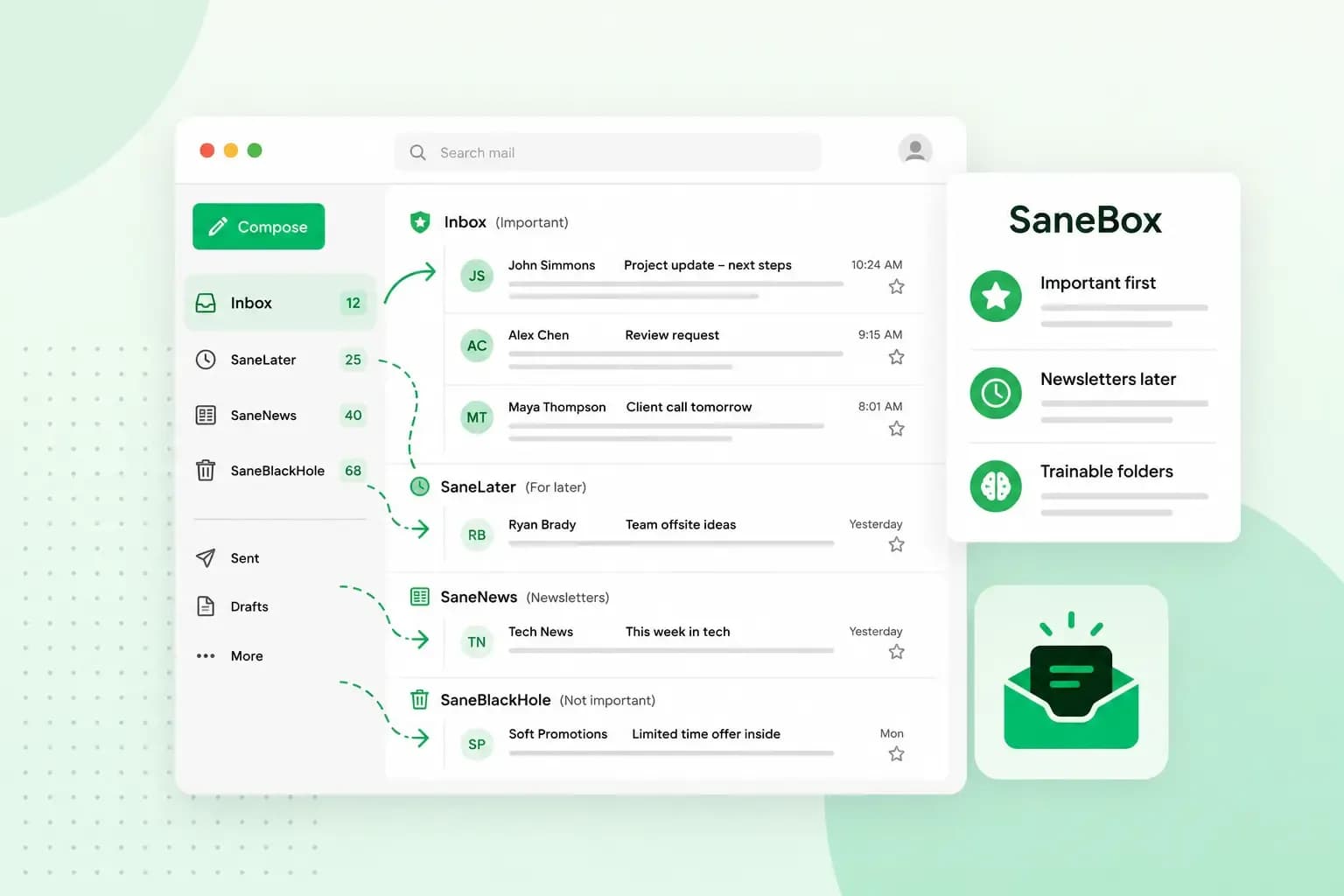
SaneBox is an email management tool that works with the email account you already have. It moves less important messages, such as newsletters and notifications, out of your inbox into a separate folder called SaneLater. Your inbox then holds the emails that need you, and you go through the rest when it suits you. You keep using your usual email app, because SaneBox works in the background.
If you have one of our email plans, this guide shows how to start.
How does SaneBox work?
SaneBox connects to your email account the same way an email app does, by logging in with IMAP. It never downloads your emails. Instead, it moves each message between folders on your email server.
To decide what's important, SaneBox looks at the header of an email, such as the sender, the subject line and the date. It also looks at how you handle your email: which emails you open, which you answer and how quickly.
The SaneBox folders are ordinary folders on your email server, just like your inbox or sent items. You see them in webmail, in your email app and on your phone.
When an email ends up in the wrong place, drag it to the folder where it belongs. SaneBox remembers that and files future emails from that sender there.
What can SaneBox do for your inbox?
SaneBox sorts your email into its folders, and you switch on the features you want in your SaneBox dashboard. If you order SaneBox through us, you get features like these for each email address:
- SaneLater: filters less important email into a separate folder, so you can deal with it later in one go.
- SaneNews: puts newsletters and bulk mail in a folder of their own, so you can read them when you have time.
- SaneBlackHole: keeps an unwanted sender out of your inbox. Move one of their emails here, and you won't get another message from that address in your inbox.
- SaneSnooze: takes an email out of your inbox until a time you choose, for example tomorrow or next week.
- SaneReminders: brings an email back to your inbox later, for example when someone hasn't replied, or reminds you of a task you sent yourself.
- Digest: a daily summary of the emails SaneBox filtered into its folders, so nothing important slips past you.
- Your own filters: sort a group of emails by rules you set yourself, such as receipts from your suppliers.
SaneBox sells a plan of its own called Dinner, which SaneBox says also includes optional AI features, such as summaries of email threads and suggested replies. These aren't listed in the SaneBox package you get through us, so check your SaneBox dashboard to see what your plan includes.
Is SaneBox safe to use?
According to SaneBox, yes. It says it is built so your email stays where it is. To sort your mailbox, it needs access to it. You give it either your email password or, with services that support it, an OAuth token. That token is a separate permission that lets SaneBox in without your password, and you can withdraw it at any time. SaneBox says it encrypts these credentials and keeps them on servers that can't be reached from the public internet.
SaneBox says your emails never leave your email server and that it doesn't store them. For sorting, it only reads the header. Some optional features, such as summaries, read the body of an email, but SaneBox says it never stores that either.
SaneBox also says it passes a yearly security assessment that Google requires. It says its servers are only reached through encrypted VPN tunnels and that it requires the operators of its data centres to hold ISO accreditation. Even so, it's worth knowing what you allow when you connect your mailbox. SaneBox can move emails between folders, read your contacts to spot important senders and send emails for some features. If you're careful about what an outside service may do with your mailbox, read SaneBox's security page before you start.
Do you need SaneBox, or is a spam filter enough?
SaneBox isn't a spam filter. A spam filter stops email you don't want at all. Every inbox in our email plans is protected from spam, phishing and malware, and our spam filter blocks unwanted messages before they reach your inbox. SaneBox sorts the email you do want but don't need to read straight away, such as order confirmations, newsletters and updates from tools you use.
If you get a lot of that kind of email, or replies you're waiting for slip through, it's worth trying SaneBox. If you mostly get email from customers and colleagues that you answer anyway, a spam filter and a few folders of your own are enough. Start with the free trial to see whether SaneBox makes a difference to your inbox.
With our email plans, your address is on your own domain and every mailbox comes with a built-in calendar. You can then try SaneBox free on each address.
Choose an email planHow do you get SaneBox with our email?
You switch SaneBox on for one email address at a time, and that address has to be an email address on your own domain with us. If you don't have one yet, choose an email plan and set up your first address. The easiest way to start is the 14-day SaneBox free trial in webmail:
- Log in to webmail with the email address you want SaneBox for and open SaneBox in the settings. If SaneBox is missing there, it has been switched off in the control panel: ask the owner of the hosting subscription, usually whoever logs in to the control panel, to switch it on.
- Start the 14-day free trial and accept SaneBox's terms.
- Use your email as normal. SaneBox works straight away with its default settings, and you can change them in the SaneBox dashboard.
- To keep SaneBox after the trial, the owner of the hosting subscription has to approve it. That approval comes by email.
If someone else owns the subscription, tell them to look out for that email before your trial ends. If you're the one who logs in to the control panel for your domain, you can also skip the trial and activate SaneBox there for any of its addresses. You then pay for it straight away.
Questions about SaneBox
How much does SaneBox cost?
The cost depends on how you use it. Each address gets a 14-day free trial when you start in webmail, and you only pay once you turn the trial into a paid subscription.
How do you cancel SaneBox?
You cancel SaneBox in the control panel, one address at a time. Your emails stay exactly where they are, and new email goes to your inbox again, unless filters you set up in webmail send it elsewhere. Afterwards, you can delete or rename the SaneBox folders, or switch SaneBox on again if you change your mind, but each address gets the free trial only once.
Why can't you see a new SaneBox folder in Outlook?
Outlook sometimes needs to update its folder list before it shows a new folder on the server. SaneBox suggests closing and restarting Outlook, which often makes the folder appear. In classic Outlook, a new folder can stay hidden until you update the IMAP folder list and subscribe to it. Some other email apps put new folders inside your inbox, so check its subfolders too.
Recommended reading
 Email6 Nov 2026
What is email spoofing? How to stop someone faking your business email address
Email spoofing is when someone forges an email's sender. See how to spot a spoofed email, what to do if it's your address and how to stop email spoofing.- Email6 Nov 2026
SPF, DKIM and DMARC explained: how to keep your emails out of spam
DMARC tells mail servers what to do with emails that fail SPF and DKIM checks. See what each record does, how to set them up and how to check they work. 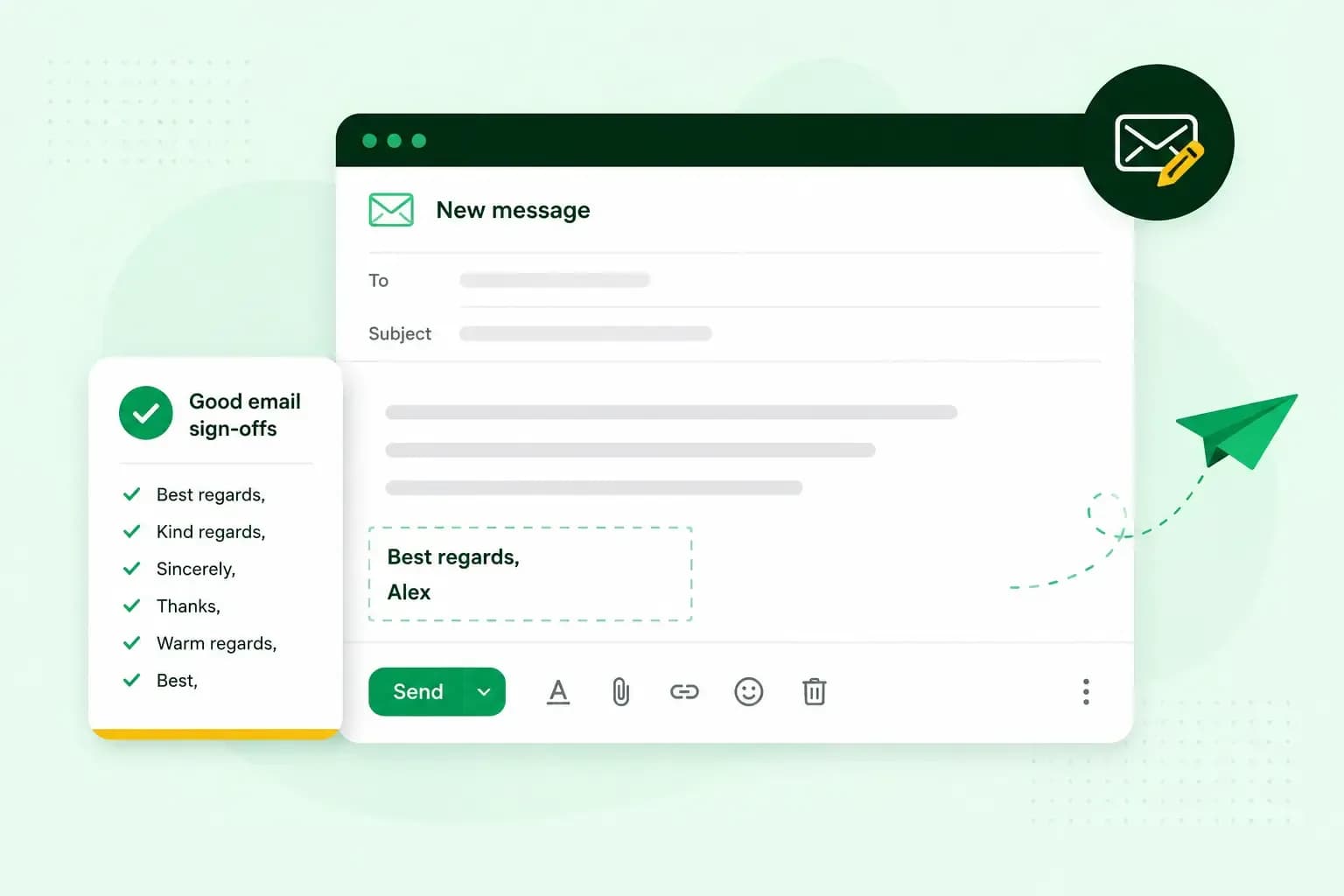 Email10 Nov 2025
How to end an email in English
How you end an email impacts how it is perceived. We have collected the best ways to sign off emails in English.